Install once, then keep coding
The short answer
One extension covers VS Code, Cursor and Devin. Install it, open CodeMesh from your editor's activity bar, and sign in from the panel. Signing in is all the setup syncing needs: the repository open in that window starts pushing to your graph with no button to press.
1. Install the extension
From your editor's command palette, run the install command for the marketplace id:
> ext install codemesh.vscode-codemeshOr search for CodeMesh in the extensions panel. The same build works in all three editors, so there is no separate Cursor or Devin package to keep track of.
If your machine cannot reach the marketplace, the platform builds are here: macOS (Apple silicon), macOS (Intel), Windows, Linux. Install a downloaded file with Extensions: Install from VSIX.
2. Sign in from the panel
Open CodeMesh from the activity bar and click Sign in. Your browser opens, you click Authorize, and you are back in the editor. You never type a password inside your code editor, which is the point of doing it this way.
The panel on the right is the extension's own interface, running on this page. It is not a screenshot and not a redraw: the stylesheet and the script are copied from the extension byte for byte.
3. Nothing. Syncing has already started
There is no third step, which is the part people do not believe. The repository open in that window begins pushing to your graph as soon as you are signed in, and every change after that syncs in the background while you carry on working.
Files listed in .gitignore are skipped by default. You can include them for a specific repository from that repository's menu in the panel, whenever you want.
Then connect your agent
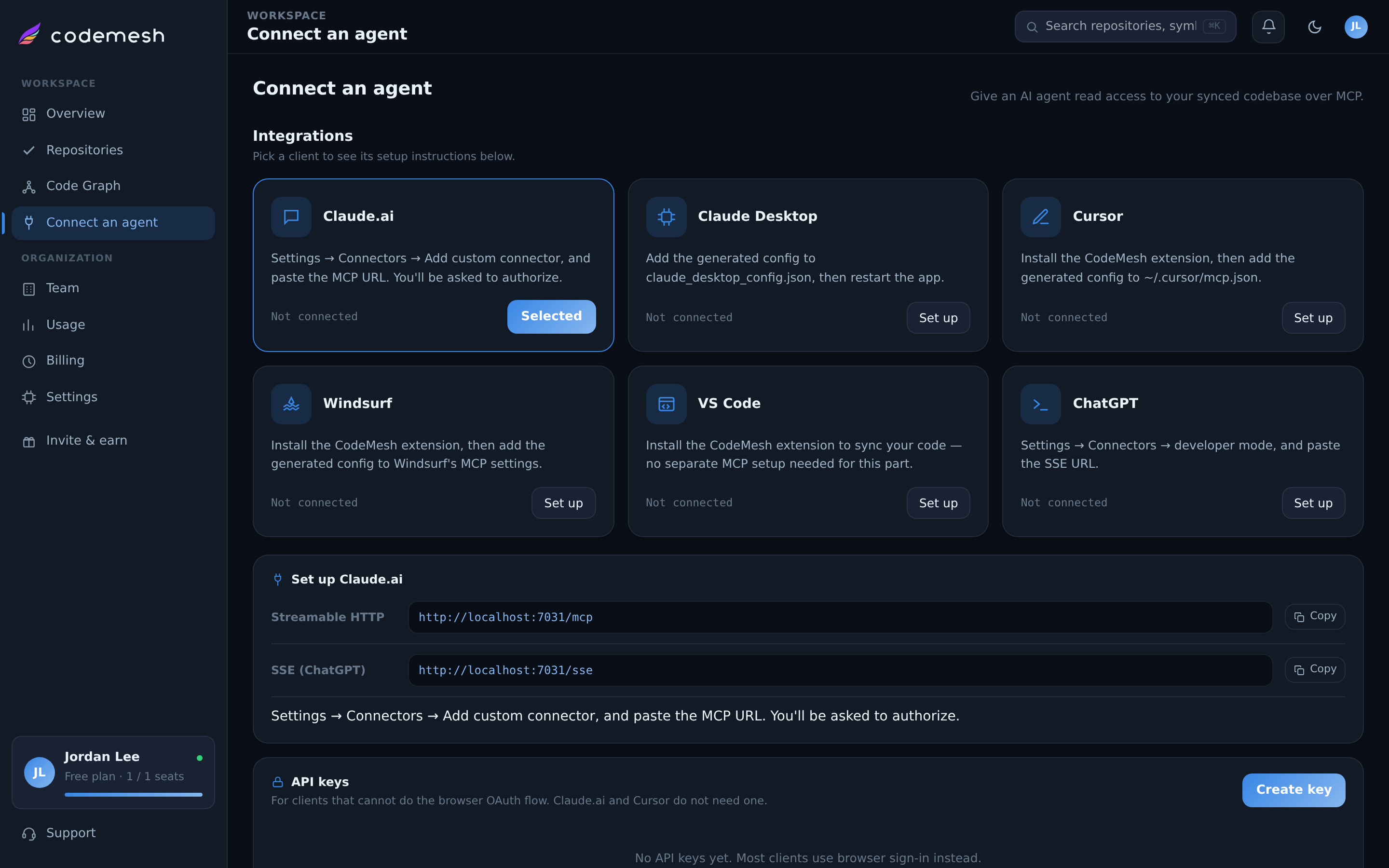
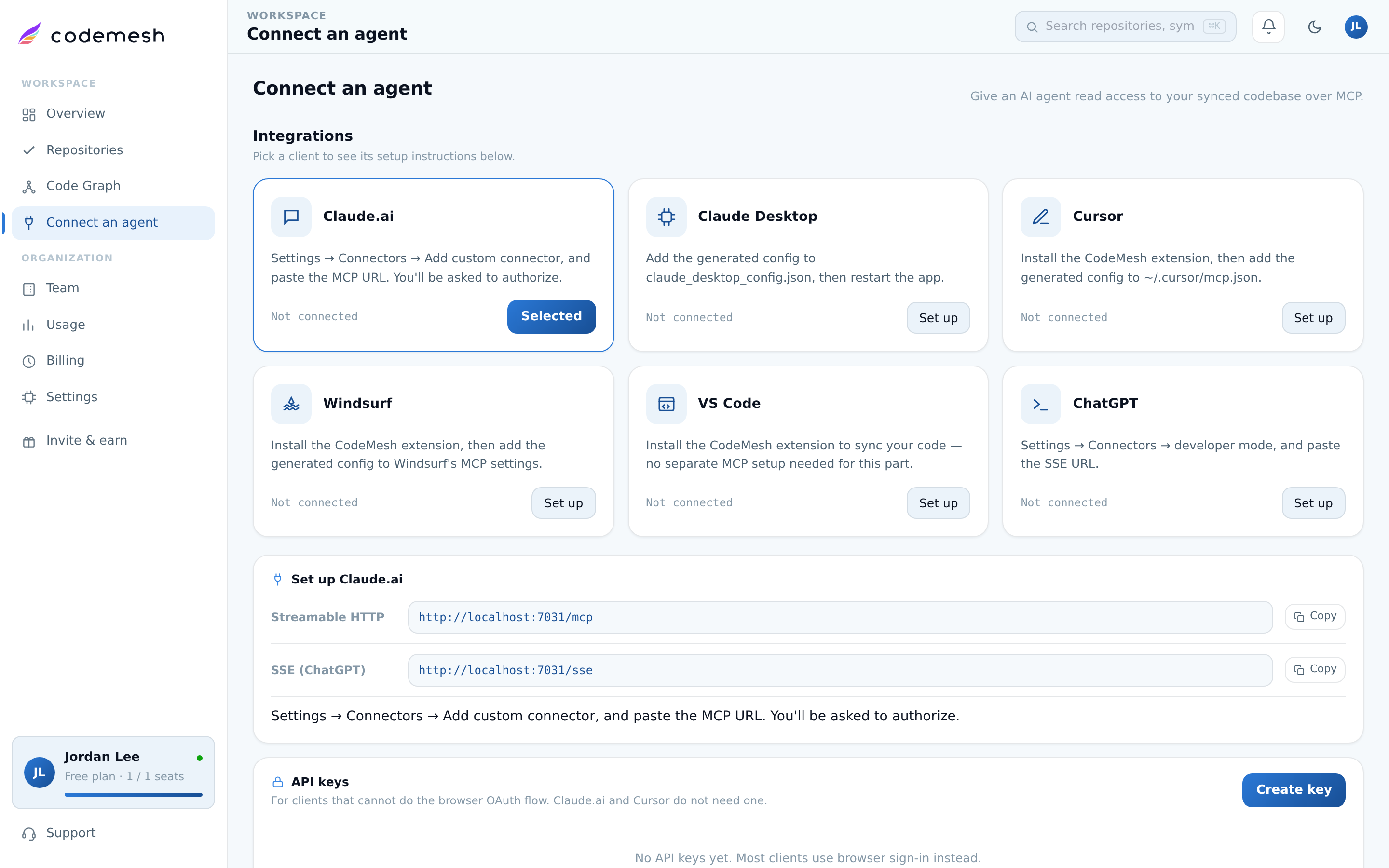
This is the one step CodeMesh cannot do for you, because your agent cannot query CodeMesh until it is connected over MCP. Click Connect next to the agent you use and CodeMesh writes its MCP entry, installs its instructions, then proves the connection with a live handshake.
Connected means that handshake passed, not merely that you clicked. Full instructions per agent are on connect your agent.
Which editors are supported?
Do I need to install anything else for syncing?
Can I install it on more than one machine?
What if my organisation blocks the marketplace?
Create an account and install it
The free plan indexes a repository and connects an agent, which is enough to measure the difference yourself.